Remove GPS Location from Photos Before You Share Them
A geotagged photo is a map pin you attach to a file without noticing. Before it leaves your device, strip the coordinates — here is where the risk is real, how to stop tagging at the source, and how to clean photos you have already taken.
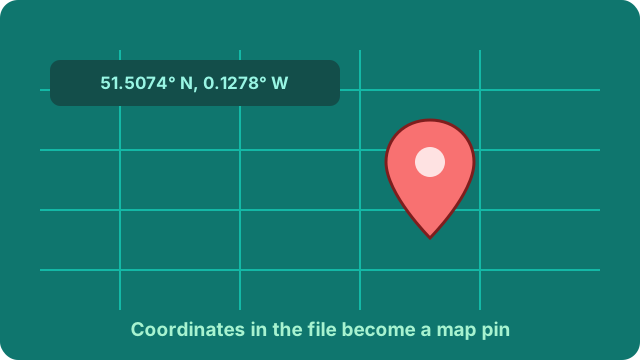
What a geotag reveals
When location services are on, your camera writes latitude and longitude into the photo file with four decimal places or more. Anyone with the file — not the app, the file — can paste those numbers into any map and land on the exact spot: your living room, your parking spot, your kid's classroom window. No hacking required; free viewers show it on the same Details screen where you check battery percentages.
Where this actually hurts
- Marketplace listings. Photos of a sofa or a phone taken at home pin the item — and the seller — to a street address. Buyers do not need your address until checkout.
- Vacation posts. Geotagged beach photos shared by file tell burglars that home is empty for a week.
- Family photos. School gates, playgrounds and bedrooms in shared albums identify where children spend their days.
- Professional sources. For journalists and activists, a single un-wiped photo can expose a meeting place or an anonymous subject's neighborhood.
Turn off geotagging at the source
- iPhone: Settings → Privacy & Security → Location Services → Camera → select "Never". New photos will carry no coordinates.
- Android: open the Camera app → Settings (gear icon) → toggle off "Location tags" (wording varies by maker). On some models it sits under Location permissions instead.
Keep in mind this only stops new photos from being tagged. Your camera roll is already full of geotagged pictures taken before the switch — and cloud backups usually keep the tagged originals, so downloading an "old" photo to share brings the coordinates right back with it. That is why wiping the file itself, at the moment you share it, is the habit that actually holds: it works no matter where the photo came from or how long it has been sitting in your library.
Clean the photos you already have
For existing files, drop them into the PhotoWipe tool — GPS data lives in the same EXIF block as everything else, so it is wiped together with device info and timestamps, losslessly. A good routine before any share: export or transfer the photo as a file, wipe it, then send.
One honest caveat: many large social platforms strip metadata automatically on upload, so photos posted directly to those feeds are lower risk. The dangerous paths are everything else — email attachments, chat apps "send as file", AirDrop, and shared cloud folders, all of which pass geotags through untouched. When in doubt, wipe first. For the full background, read what EXIF data is.
Frequently asked questions
Do all sharing apps keep GPS tags?
No. Most major social networks strip metadata on upload, but email attachments, messaging app file transfers, AirDrop and shared cloud folders pass the full file through untouched. Treat those channels as the risky ones.
If I disable location for my camera app, are old photos still tagged?
Yes. The setting only affects new photos. Existing pictures keep their geotags until you wipe the files.
Can someone track me from one photo?
One geotagged photo reveals where you were at one moment. A pattern of them — home, gym, school run — reveals your life. Wipe before sharing anything identifiable.
Ready to share safely? Wipe photos free or go unlimited.